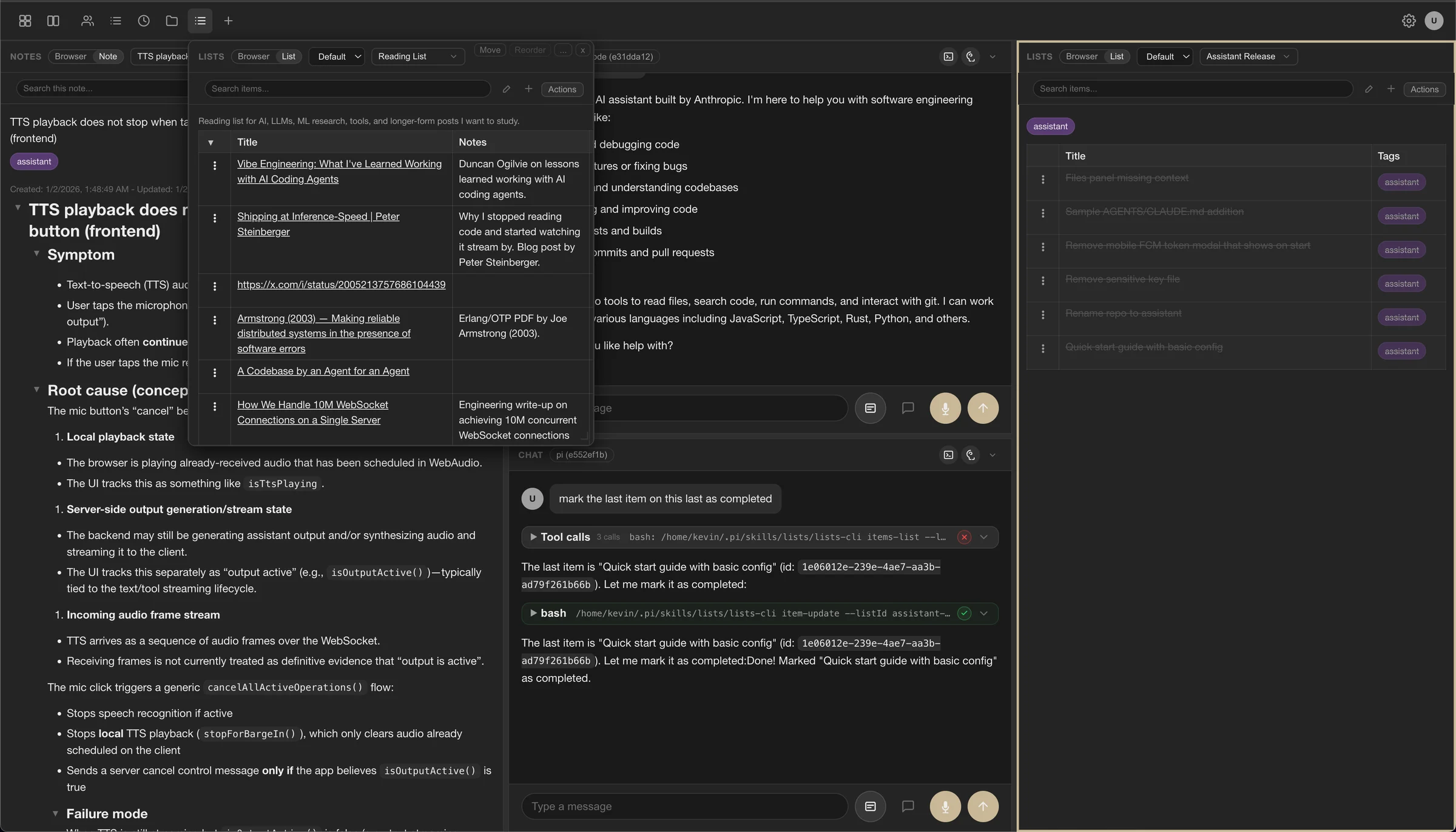
Assistant · AI 个人助理台
 VibeMySpace 精选@vibemyspace-curated
编辑介绍
桌面式界面保留会话、工具和长期上下文。
AI 用途:AI 在个人任务、资料与工具调用之间提供统一入口。
使用方式:可接用户自己的 Claude CLI、Codex CLI,也支持 Pi SDK、多家模型 API 和自定义 OpenAI-compatible session。
原帖正文
assistant
⚠️ Experimental Software
This is personal software shared with the community for educational purposes. Qustions and contributions are welcome, but don't expect stability or support.
A personal AI assistant with a panel-based plugin system, multi-agent CLI integrations, and text/voice UI. Plugins define panels and operations so agents can collaborate on lists, notes, and diff reviews, or extend the app with custom user-provided plugins. OpenAI-compatible sessions are limited in functionality today and will likely be replaced by an integration with the badlogic/pi-mono agent SDK.
<table> <tr> <td valign="top"></td> <td valign="top"></td> </tr> </table>Table of Contents
- Features
- Quick Start
- Repository Layout
- Documentation
- External Integrations
- Configuration
- Development
- Architecture
- License
Features
- Text chat with streaming responses
- Voice input using browser-based speech recognition (Web Speech API)
- Voice output via OpenAI TTS or ElevenLabs streaming TTS (optional)
- CLI agent integrations (Claude, Codex, Pi) alongside built-in providers
- Scheduled sessions for cron-driven CLI runs
- Panel plugins for lists, notes, diff review, and custom workflows
- Tool integration via MCP (Model Context Protocol) over stdio
- Built-in session tools – agent can list, search, create, switch, rename, and pin sessions
- Persistent sessions with JSONL event logs and optional naming/pinning
- Multi-client support – multiple browser windows can share a session
- Theme + font preferences (auto/light/dark + presets)
Quick Start
# Clone the repository
git clone https://github.com/kcosr/assistant
cd assistant

# Install dependencies
npm install

# Build all packages
npm run build

# Build all packages in parallel
npm run build:parallel

# Build all packages in parallel on the remote builder
npm run build:remote

# Start the server (uses built-in config at packages/agent-server/data/config.json)
npm run start -w @assistant/agent-server

# Open http://localhost:3000 in your browser
The built-in config includes Claude Code, Codex, and Pi CLI agents. For a full configuration example with all options, see packages/agent-server/data/config.example.json.
Configuration Overrides
Override the default paths using environment variables:
# Use a custom data directory (sessions, events, config)
export DATA_DIR=/path/to/data

# Use a specific config file
export APP_CONFIG_PATH=/path/to/config.json

npm run start -w @assistant/agent-server
The server looks for config at ${DATA_DIR}/config.json by default, or at APP_CONFIG_PATH if set.
Building Skills for CLI Agents
Plugins can be exported as skills for use with CLI agents that support skills (e.g., Claude Code, Codex, Pi):
# Build all plugin skills to a directory
npm run build:plugins -- --skills-dir /tmp/skills

# Copy specific skills to your agent's skills directory
# Claude: ~/.claude/skills/  |  Pi: ~/.pi/skills/  |  Codex: ~/.codex/skills/
cp -r /tmp/skills/{notes,lists} ~/.pi/skills/

# Or copy all skills (ensure no name conflicts with existing skills)
cp -r /tmp/skills/* ~/.pi/skills/

# Build only specific skills directly to the skills directory
npm run build:plugins -- --skills notes,lists --skills-dir ~/.pi/skills/
Some skills include a CLI binary. Add the skill directories to your PATH, or reference CLIs by full path in your AGENTS.md:
# Option 1: Add to PATH (in ~/.bashrc or ~/.zshrc)
export PATH="$PATH:$HOME/.pi/skills/notes:$HOME/.pi/skills/lists"

# Option 2: Reference full paths in AGENTS.md / SKILL.md documentation
Keyboard Shortcuts
| Shortcut | Action |
|----------|--------|
| Ctrl/Cmd + K | Open command palette |
| Ctrl/Cmd + ] / Ctrl/Cmd + [ | Cycle focus between panels |
| Ctrl + P | Toggle layout navigation mode |
| Ctrl + H | Toggle header panel navigation mode |
| Ctrl + Shift + S | Split active panel (placement mode) |
| Ctrl + I | Toggle text input focus |
| Ctrl + A/C/D/F/L/N/S/T | Focus last-used artifacts/chat/diff/files/lists/notes/sessions/time tracker (opens modal if none) |
| Ctrl + R | Toggle speech recording (if available) |
| Cmd + Shift + S (macOS) | Toggle sessions sidebar |
| Cmd/Ctrl + Shift + C | Toggle chat panel |
| Cmd/Ctrl + Shift + ↑/↓ | Jump to top/bottom of chat |
| Ctrl + Shift + Cmd + W (macOS) / Ctrl + Shift + Alt + W (others) | Close panel (replace with placeholder) |
| Ctrl + Shift + Cmd + X (macOS) / Ctrl + Shift + Alt + X (others) | Remove panel from layout |
| Enter | Replace active empty panel |
| Shift + Enter | Submit modal form (e.g., from tags input in notes/lists) |
| Cmd + Click (macOS) / Ctrl + Click (others) | Focus a non-chat panel (chat panels focus on regular click) |
| Tab / Shift + Tab | Cycle focus between sidebar and input (when input is empty) |
| Esc | Cancel active operations (on mobile, closes sidebar if open; in pinned or modal chat panels, closes the panel instead) |
In layout navigation mode: arrows move between panels, Enter selects, Esc exits, Tab cycles tabs, m toggles split view, 1-9 select visible panels, 0 cycles pages.
In header navigation mode: ←/→ (or A/D) cycle header panels, Enter/↓ activates, Esc exits, 1-9 select visible panels, 0 cycles pages.
In split placement mode: arrows or WASD choose region, Enter confirms, Esc cancels.
Sessions sidebar (when focused):
Arrow Up/Down– Move between sessions (selection follows focus)Enter– Focus inputt– Toggle pind/Delete/Backspace– Delete session (with confirmation)c– Clear history (with confirmation)
Lists panel item selection:
Click– Select item (when enabled in Settings menu)Shift + Click– Range select from last selected item to clicked itemCmd + Click(macOS) /Ctrl + Click(others) – Toggle individual item selectionDouble-click– Edit itemArrow Up/Down– Move selectionShift + Arrow Up/Down– Extend selectionEnter– Edit focused itemSpace– Toggle completed for selectionn– Add itema– Toggle AQL modew/s– Move focused item up/downt/b– Move focused item to top/bottomp– Toggle pinCmd/Ctrl + C/X/V– Copy / cut / paste list items (cross-list)d– Delete selection (with confirmation)Esc– Clear selection
Lists/Notes browser (collection view):
Arrow keys– Move focusEnter– Open focused itemp– Toggle pin
Command palette (when open):
Arrow Up/Down– Move focusEnter– Launch selectionShift + Enter– Replace active panel (when available)→– Open action menuEsc– Close palette or menus
Palette commands:
/pinned– Show pinned lists and notes/favorites– Show favorite lists and notes
Notes panel: Drag to select text, then release with Shift held to add selection to agent context.
ElevenLabs Streaming TTS (Optional)
To enable ElevenLabs streaming text-to-speech (note: this can be costly):
export TTS_BACKEND=elevenlabs
export ELEVENLABS_API_KEY=<key>
export ELEVENLABS_TTS_VOICE_ID=VUGQSU6BSEjkbudnJbOj
export ELEVENLABS_TTS_MODEL=eleven_multilingual_v2
Git Versioning
来源与作者
- 原作者:Kevin (@kcosr)
- 发布平台:GitHub
- 原帖:查看原帖
- 权利说明:VibeMySpace 仅作带来源的整理展示,内容与图片权利归原作者。
开源信息
未开源。